Showing posts with label Tutorial. Show all posts

How to Install PES 2021 Player Faces with Sider

 How to Install PES 2021 Player Faces with Sider

How to Install PES 2021 Player Faces with Sider

Simple tutorial about how to install PES 2021 player face via LiveCPK sider. With this method you can change PES 2021 fake player face to real face. 

Subscribe : https://www.youtube.com/channel/UCV8sHfbLUashJsKlC_vzWPA

Share:

How to Install Predator002 UEFA Comments for English Commentary PES 2020

How to Install Predator002 UEFA Comments for English Commentary

New tutorial video about How to Install Predator002 UEFA Comments for English Commentary via Sider PES 2020. This video will help you if you're having a problem with it. Just follow the steps on the video. Find more details about it on video description ;)


Share:

How to Add Stadiums in Stadium Server PES 2020 for Manual Selection

How to Add Stadiums in Stadium Server PES 2020 for Manual Selection

New tutorial video about How to Add Stadiums in Stadium Server PES 2020 for Manual Selection. This video will help you if you're having a problem with it. Just follow the steps on the video. Find more details about it on video description ;)


Share:

How to Convert Stadiums from PES 2019 to PES 2020 V2 by Andò12345

How to convert stadiums from PES 2019 to PES 2020 by  Andò12345

How to convert stadiums from PES 2019 to PES 2020 by Andò12345

Premise: converting your PES 2019 stadium with this tutorial, the stadiums won't be perfect and probably will have some small problems but the quality is acceptable. Another problem is that some stadiums couldn't work right with this tutorial.

Changelog v.2

Fix to flickering edge pitch and white edge pitch

Tutorial

1. Open PES 2019 stadium ( if it's cpk, unpack it with CRI Packed File Maker )

2. Delete the following folders: 

Stadium\Asset\model\bg\stxxx\light - Stadium\Asset\model\bg\stxxx\light

3. Delete all the referements about the written "pitch" in folder 

4. Stadium\Asset\model\bg\stxxx\sourceimages\tga\#windx11

5. Move the Asset folder of the stadium converter folder into your stadium folder

(If the id isn't 009 you have to change all the referements of 009 to your id)

Download Asset folder stadium converter below here.

DOWNLOAD HERE STADIUM CONVERTER

FIX Flickering / White Edge Pitch (13/10/2019) by @Andò12345 and @saintric

Requirements

Photoshop CS6
DDS Plug-In
CGPE by Shawminator

How to Use :

1. Open CGPE, go to tools/ftexconverter, go to convert ftex and select

YourStadium\Asset\model\bg\st046\sourceimages\tga\#windx11\pitch_alp.ftex

2. - Go to YourStadium\Asset\model\bg\st046\sourceimages\tga\#windx11\pitch_alp.ftex and you'll see pitch_alp.dds, open it with Photoshop

3. Resize with Photoshop where is violet and yellow until in-game the pitch won't have problems


4. When you've finished save the file with these settings


5. Open CGPE, go to tools/ftexconverter, go to convert and select your new pitch_alp.dds

6. Substitute the old pitch_alp.ftex with the new one
Share:

How to Increase Match Time in eFootball PES 2020 Steam DEMO

eFootball PES 2020

How to Increase Match Time in eFootball PES 2020 Steam DEMO

You can extend demo match time in eFootball PES 2020 Steam DEMO. All you need is just sider 6.0.0.

How to Use :

1Download Sider 6.0 here.

2. Extract in PES 2020 Demo game folder.

C:\Program Files(x86)\Steam\steamapps\common\eFootball PES 2020 DEMO\

3. Open sider.ini with notepad, in exe.name and match minutes change it like this below. This example config gives you a 15-minute match.

[sider]
debug = 0
close.on.exit = 0
start.minimized = 1

overlay.enabled = 0
free.side.select = 0
livecpk.enabled = 0
lua.enabled = 0

exe.name = "\PES2020.exe"

; enforce number of match minutes here
; you can set any value from 1 to 255, although you probably
; do not want to go higher than 90, because it will be weird :-)
; 0 - disables this feature.

match.minutes = 15

4. Save it and done !

5. Don't forget to run sider.exe as admin before starting the game ! otherwise this won't take effect !

All credit to Juce & Nesa24 for Sider.
Share:

PES 2019 How to Change Goal Net Color Stadiums via Stadium-Server by Hawke

Tutorial How to Change Goal Net Color for Stadiums via Stadium-Server by Hawke

Here's new tutorial by Hawke about how to change the net color for stadiums loaded via Stadium-Server.This video will show you how to make Allianz Arena have Red & White striped nets. All credit goes to Hawke.


Just in case the video gets deleted, you can download it the backup video here.
Share:

PES 2019 Tutorial Fix PS4 to PC Hair Animation Bug by Hawke

Riquelme

Tutorial Fix PS4 to PC Hair Animation Bug by Hawke

Here's a simple guide to fix hair animation bug in PES 2019. You can see the video about Fix PS4 to PC Hair Animation Bug by Hawke below.


NOTE: For players with long hair you can leave some animation so the hair moves/waves slightly by making the ends of the hair white..but you must make the transition from the blue colour to white gradually.
Share:

Tutorial How to Use PES 2019 Kit Studio 2019 by Hawke

Tutorial How to Use PES 2019 Kit Studio 2019 by Hawke

Here's a tutorial about How to use Kit Studio 2019 by Hawke. It's an AIO video split into 4 parts. Total run time 41 min 27 sec. Best viewed in 1080p & remember the pause button is your friend. All credit & thanks to Hawke for tutorial video and Zlac for Kit Studio 2019.


Part1: The Setup

Part2: Adding kits to unlicensed teams

Part3: Adding extra kits

Part4: Setting a team to use tight kits


Note :

-There are some FAQ at the end of the video..please read them.

-Please try not to ask questions that are clearly answered in the video..it's taken me nearly 8 hours to put this together.

-Important...Back up your files/folders/cpk's etc..Kit Studio automatically backs up your files, but I would back everything up manually as well...I take no responsibility for people breaking their game.

-There may be some Typos.

- If the video gets deleted, you can download it here.

Credits : Zlac, Hawke, Shawminator, Juce, Nesa24, Evo-Web.
Share:

How to Create CPK File from PES 2019 Faces Folder

How to Create CPK File from PES 2019 Faces Folder

Here I will give you how to use faces  PES 2019 from non CPK File. Usually modder gives mod face in CPK file, but some of the face release from facemaker is not in CPK form, so you need to make CPK file first before using it.

How to Create CPK File from PES 2019 Faces Folder :

1. Download PES 2019 Face template here.

2. Extract PES 2019 Face template with WinRAR or 7zip.

3. Download any faces from PES 2019 Facemaker for example i'm going to use Marcus Rashford PES 2019 by The White Demon here.

4. Now extract the downloaded faces WinRAR / 7zip, You will find a folder with some number 110638. FYI, Marcus Rashord ID in PES 2019 is 110638. You can check it from PESMaster

https://www.pesmaster.com/m-rashford/pes-2019/player/110638/

or by using PES 2019 Editor by Ejogc327

5. Now go to PES 2019 Face Template and Move 110638 folder to

Asset\model\character\face\real\ ( Place Here )

6. Open CRI File Systems Tools ( CRIPackedFileMaker.exe ) as administrator, now open PES 2019 Face Template location and now start Rebuild PES 2019 Face Template folder with Marcus Rashford Face, just click Build CPK file


7. In CPK Path, you can rename your own CPK file or your preffered save location, for example Marcus Rashford.cpk and click Start to Build. Wait for couple seconds and your CPK file is ready :)


8. Finally you can add PES 2019 Faces CPK file format as usual, copy Marcus Rashford.cpk to the location below and Generate with PES 2019 DpFileList Generator

C:\Program Files\Steam\Steamapps\Common\PRO EVOLUTION SOCCER 2019\download\

9. Done !

*This guide can also be applied with PES 2018 Faces.
Share:

How to Unlock All Boots & Balls on FIFA 19

How to Unlock Boots & Balls on FIFA 19

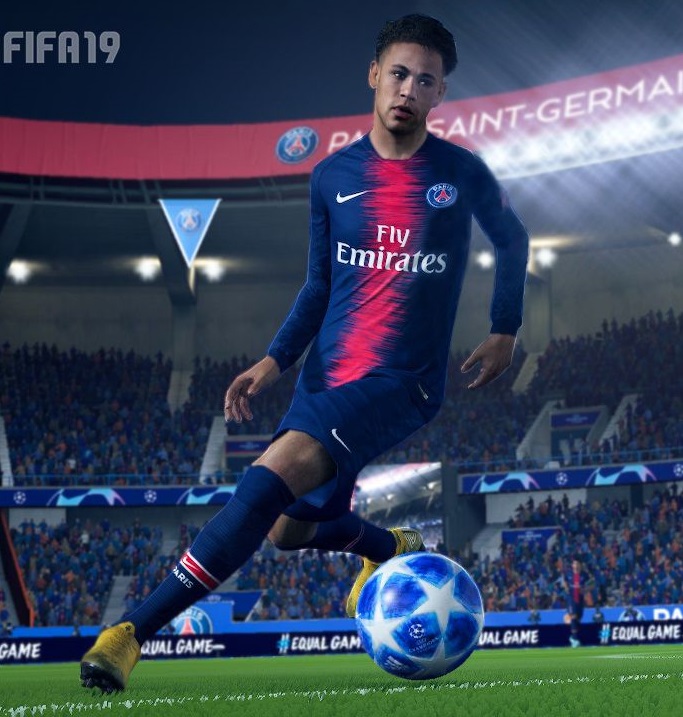
Here's a guide to change about how to Unlock Boots & Balls on FIFA 19. This will work with all updates of FIFA 19.

Method 1

1. Download locale.ini here, You may get a warning saying "this file could damage your computer", but don't worry. It's just a text file. 

2. Now, you want to replace your locale.ini with the one you downloaded.

C:\Program Files (x86)\Origin Games\FIFA 19\Data if you are using a previous FIFA, just go into that FIFA's folder in Origin Games.

3. Then, drag and drop the file you downloaded into the data folder and click replace. and You're done!

Method 2

1.  To change it yourself, just go to 

C\Program Files (x86)\Origin Games\FIFA 19\Data

2. Open locale.ini with notepad or other text editor.

3. Scroll down to the bottom. You'll see something like this:

// "CURRENCY_SIGN_SPACE_FIGURE", CURRENCY_SIGN_SPACE_FIGURE
// "CURRENCY_SIGN_FIGURE", CURRENCY_SIGN_FIGURE
// "CURRENCY_FIGURE_SPACE_SIGN", CURRENCY_FIGURE_SPACE_SIGN

Now at the bottom, add the following code:

[]
UCC_MULTICHARACTER = 1
UNLOCK_ALL_UCC = 1
UCC = 1
[POW]
ENABLE_ALL_UNLOCKABLES = 1
[]
UNLOCK_ALL_UCC=1
UCC=1

Make sure to put an empty line between the parts. You're locale.ini should now look like this:

// "CURRENCY_SIGN_SPACE_FIGURE", CURRENCY_SIGN_SPACE_FIGURE
// "CURRENCY_SIGN_FIGURE", CURRENCY_SIGN_FIGURE
// "CURRENCY_FIGURE_SPACE_SIGN", CURRENCY_FIGURE_SPACE_SIGN
[]
UCC_MULTICHARACTER = 1
UNLOCK_ALL_UCC = 1
UCC = 1
[POW]
ENABLE_ALL_UNLOCKABLES = 1
[]
UNLOCK_ALL_UCC=1
UCC=1

4. Now save your file and restart FIFA 19. You'll have all the shoes and balls in the game!

Credits : FIFER_Mods
Share:

Blog Archive